|
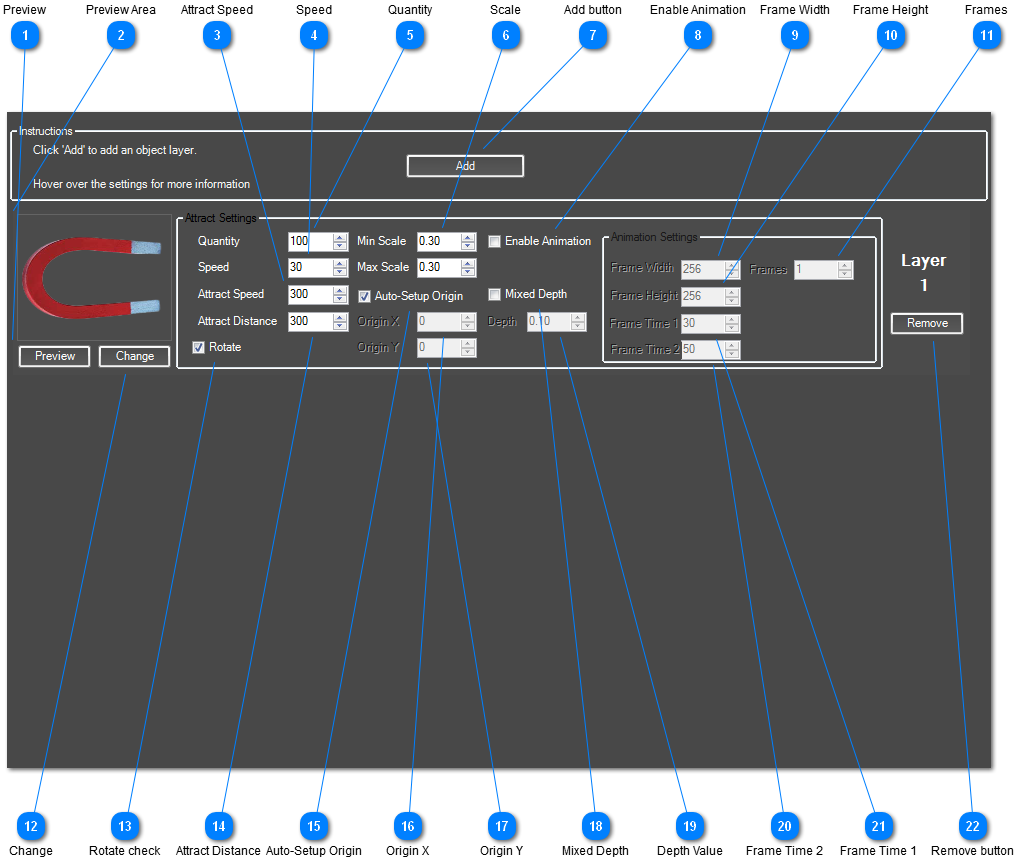
The Attract effect supports an unlimited amount of interactive layers. Too add a new layer, just click the add button. Then browse for your image containing the animation frames or the first file in your image sequence. See ' Animated Sprites' for more information.
You can see details of all the possible settings below.
 Preview
Hit preview to show the animation that appears when motion is detected and press preview again to show the animation that plays when there is no motion.
| |
 Preview Area
This is where you can preview your animation.
| |
 Attract Speed
This is the speed that the sprites will move when motion is detected.
| |
 Speed
If set to 0, the images will stay in the same place. If you increase this the images will move randomly around the screen. This higher the setting the faster it will move.
| |
 Quantity
Set how many copies of your animated image are displayed across the screen.
| |
 Scale
Set the minimum and maximum scale values and AdVis will create copies of your sprite with random scales between these two values. A scale of 2.0 will double the original size of your image.
| |
 Add button
Adds a new Attract Sprite to your effect.
| |
 Enable Animation
Instead of an static image, you can setup your sprites as an animation. Click here to enable animation settings.
| |
 Frame Width
If you are using a single image that contains all the frames in your animated, this is the pixel width of each frame in your image. See 'Animated Sprites' for more information on setting up an animated Sprite.
If using a file Sequence, this option is disabled.
| |
 Frame Height
If you are using a single image that contains all the frames in your animated, this is the pixel height of each frame in your image. See 'Animated Sprites' for more information on setting up an animated Sprite.
If using a file Sequence, this option is disabled.
| |
 Frames
Set how many frames are in your animation. The animation will be looped back to the beginning when this frame is reach.
| |
 Change
Click here to browse for your image file containing the frames of your animation or the first file in your Image Sequence
| |
 Rotate check
If enabled, your sprites will be randomly rotated.
| |
 Attract Distance
This sets how near motion needs to be to attract a sprite. Measured in pixels, the higher this setting, the further away motion will attract the sprite.
| |
 Auto-Setup Origin
If enabled, the origin of the sprite will it's centre. The origin is the point around which the sprite rotates.
| |
 Origin X
This sets the horizontal position of the origin in your image. The origin is the point around which the sprite rotates.
| |
 Origin Y
This sets the vertical position of the origin in your image. The origin is the point around which the sprite rotates.
| |
 Mixed Depth
If enabled, this layer will be mixed with all other layers. If disabled, layers will be drawn on top of each other i.e. images in Layer 1 will be shown beneath images in Layer 2. If mixed depth is enabled Layer 1 and 2 will be mixed together.
| |
 Depth Value
You can set the depth of this layer. Layers set with a higher depth will be drawn on top of layers with a lower depth.
| |
 Frame Time 2
Set's how many milliseconds between each frame of your animation after motion has been detected. Increase this setting to slow down your animation.
| |
 Frame Time 1
Set's how many milliseconds between each frame of your animation before motion has been detected. Increase this setting to slow down your animation.
| |
 Remove button
Removes this layer from your effect.
| |
|
|