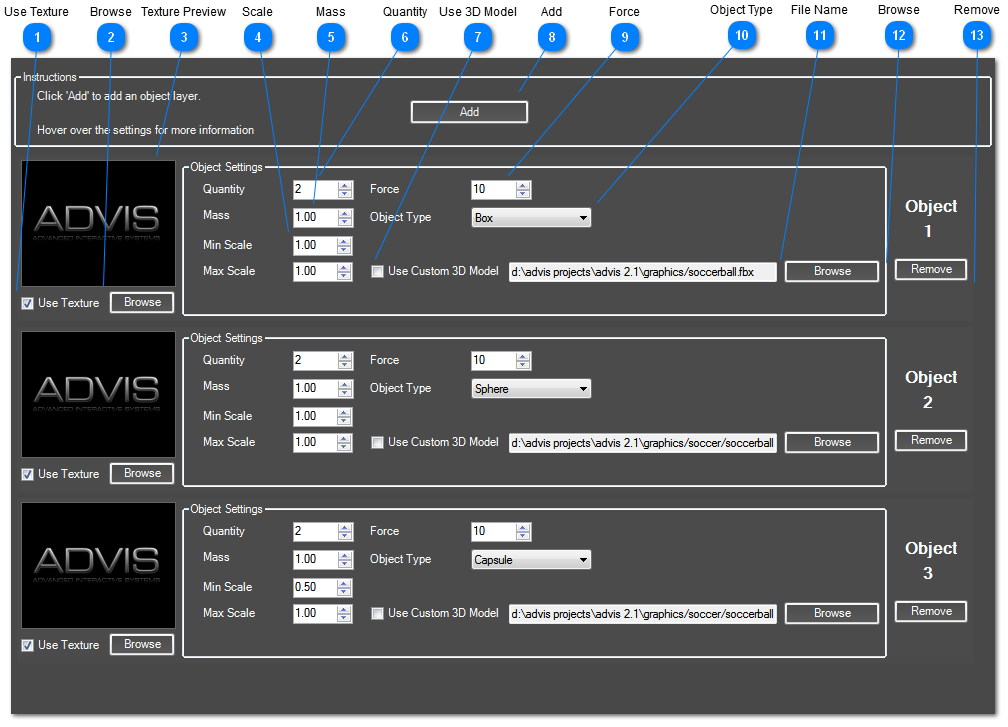
You can add an unlimited amount of 3D objects to your effect.
 Use Texture
If selected, the 3D model will be wrapped with the selected texture.
|
|
 Browse
 for a texture to wrap the 3D model
|
|
 Texture Preview
Preview the loaded texture.
|
|
 Scale
Set the minimum and maximum scale values and AdVis will create copies of your model with random scales between these two values. A scale of 2.0 will double the original size of your model.
|
|
 Mass
Sets how heavy the 3D model is in it's virtual 3D world. A heavier mass will mean the object will move slower and not bounce as much.
|
|
 Quantity
Sets how many instances of the 3D model are loaded.
|
|
 Use 3D Model
Instead of the default 3D shapes, you can load your own 3D model.
|
|
 Add
Adds a new type of object to your effect.
|
|
 Force
How much force motion will generate on this object.
|
|
 Object Type
This setting sets the physical properties of your 3D object. For example, a 3D model set as a sphere will roll like a normal ball and bounce around the screen. A box can be slid across the screen or bounce and roll if pushed hard enough.
|
|
 File Name
The full path of your 3D model
|
|
 Browse
 for a 3D Model File. See '3D models' for compatible files.
|
|
 Remove
 this object from your effect.
|
|